Get the most out of Playbookmakers
Short, step-by-step guides with pictures of the real screens. Works the same on a phone, tablet or computer.
Build a play
Draw a play on a real football field, basketball court or soccer pitch, save it, and share it with your team.
- 1
Pick your sport
At the top left of the board, tap Gridiron (football), Hardwood (basketball) or Pitch (soccer). The field changes to match, and every play you save keeps its own surface.

- 2
Start from a template or a blank field
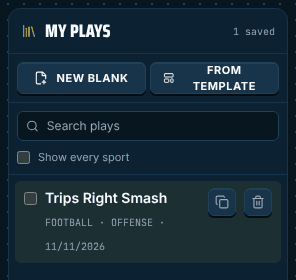
The board opens with a ready-made formation. In My Plays on the right (below the board on a phone), tap From template for that starting formation again, or New blank for an empty field.
- 3
Add and move players
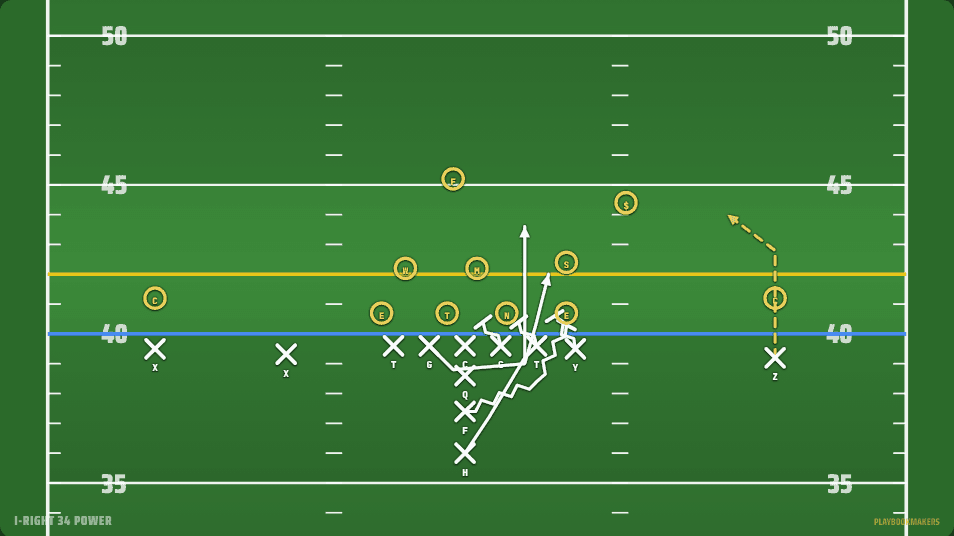
Tap Add X for offense or Add O for defense, then tap the field where the player lines up. To reposition anyone, tap Move and drag the player. Routes move with their player.
- 4
Draw routes
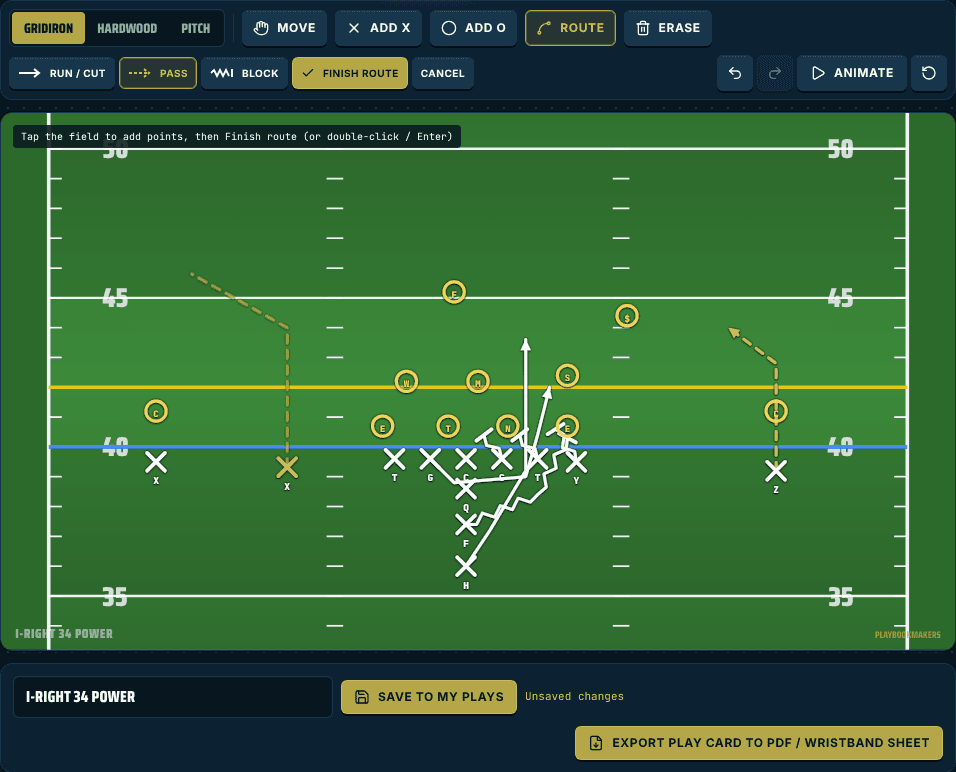
Tap Route, then choose the line: Run / Cut (solid), Pass (dashed) or Block (squiggly). Tap the player, tap the field at each turn of the route, then tap Finish route. Cancel throws the route away.
- 5
Fix mistakes
Tap Erase, then tap a player (removes the player and their routes) or a route. The curved arrows are Undo and Redo; the circle arrow resets the board to the template.
- 6
Name it and save
Type the play's name in the box under the field and tap Save to My Plays. After that, Save updates it and Save as new makes a copy. Your plays show up in My Plays on any device you sign in on.

- 7
Use it
Animate runs every route so you can watch the play. Add to team playbook sends it to your team (pick the team first), and your players see it right away. Export Play Card to PDF / Wristband Sheet makes a printable card; tick up to 8 plays in My Plays to put them all on one wristband sheet.
Break down game film
Upload or link your game film, mark every play, draw on the video and record voice notes.
- 1
Add your game film
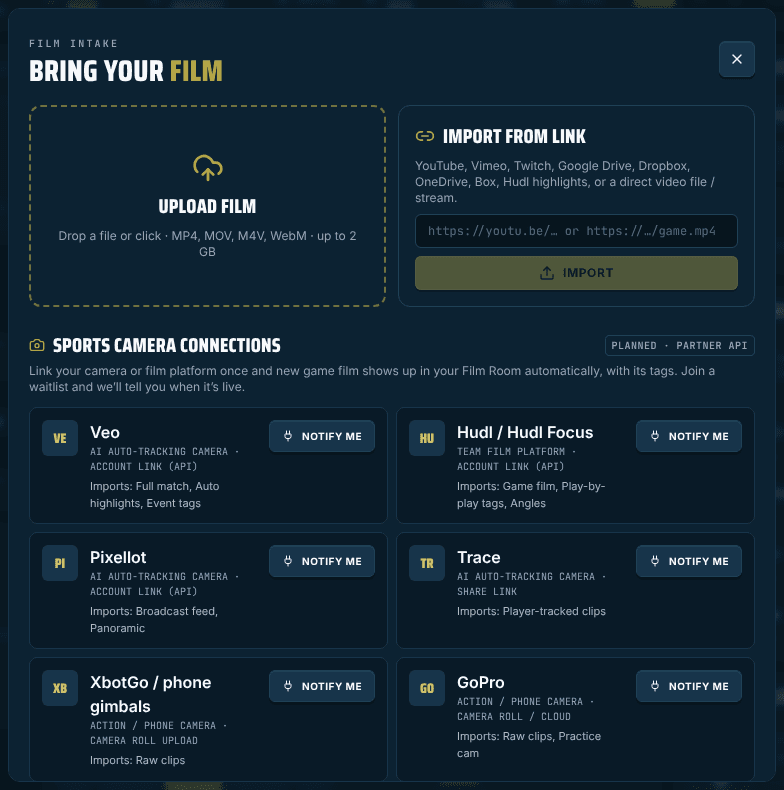
Tap Add game film. Either tap Upload film and pick a video (MP4, MOV, M4V or WebM, up to 2 GB), or paste a link (YouTube, Vimeo, Twitch, Hudl, Google Drive, Dropbox, OneDrive, Box) and tap Import. A slow upload can be stopped with Cancel upload.
- 2
Watch and step through
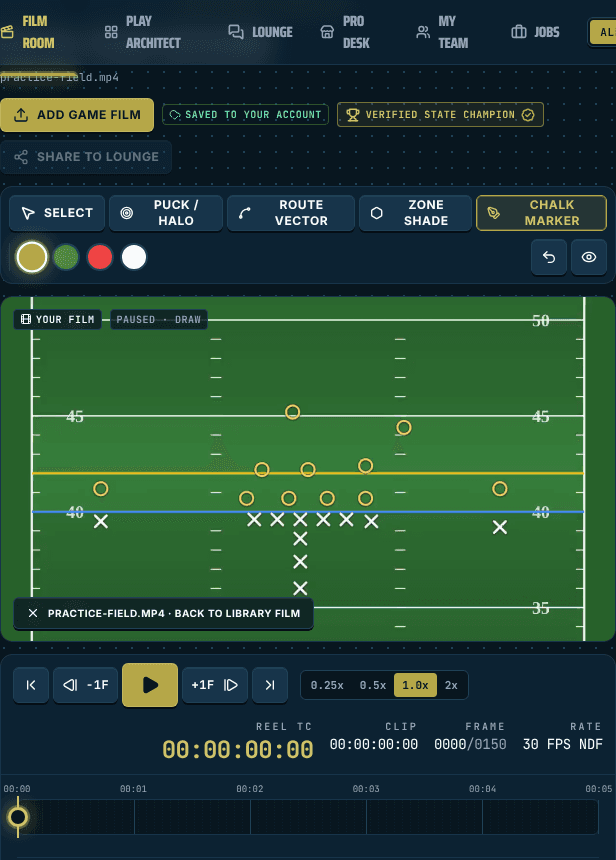
Use the bar under the video: play / pause, −1F and +1F to move one frame at a time, and 0.25x to 2x speed. Drag along the timeline to jump anywhere.
- 3
Mark each play
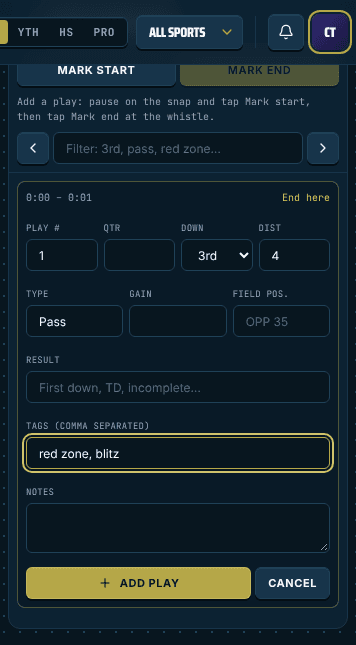
In Plays in this film, pause on the snap and tap Mark start. Play to the whistle and tap Mark end. Fill in what you want (down, distance, type, gain, result, tags, notes) and tap Add play.
- 4
Find plays fast
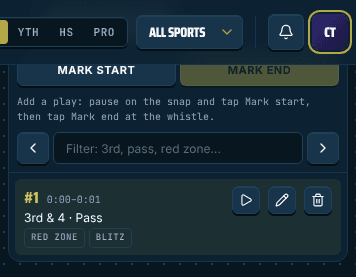
Tap a play in the list to jump to it, the play button to watch just that clip, the pencil to edit and the trash can to delete. Type in the filter box (for example 3rd, pass or red zone) to show only matching plays, and use the arrows for previous / next.
- 5
Draw on the film
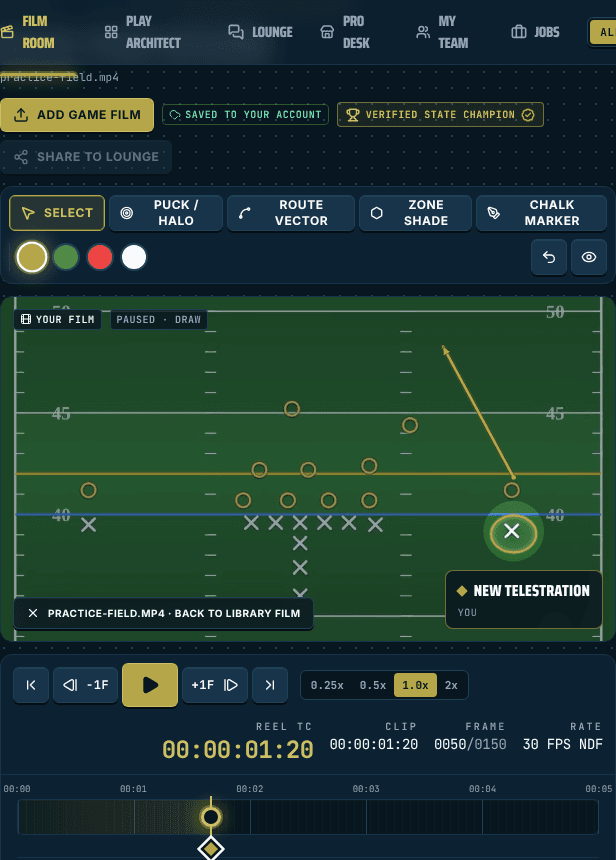
Pause, then pick a tool above the video: Puck / Halo (drag to spotlight a player), Route Vector (drag an arrow), Zone Shade (tap 4 points to shade an area) or Chalk Marker (freehand). Choose a color. Select lets you move or delete a drawing, and the eye button hides all drawings for a clean view.
- 6
Talk over it
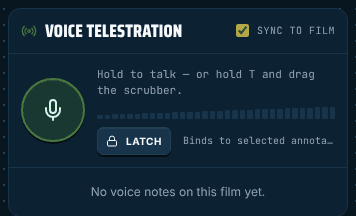
In Voice Telestration, hold the microphone button and talk. The note is tied to that moment in the film and plays back when the film reaches it. Your browser will ask for microphone access the first time.
- 7
Manage your films
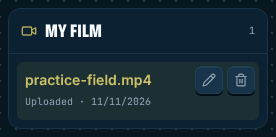
Your uploads are listed under My Film. Tap the pencil to rename a film or the trash can to delete it (its plays, drawings and voice notes go with it). Your own film is private to your account.
Phone tips
- Turn your phone sideways for a bigger field and video.
- With Move (Play Architect) or Select (Film Room) picked, swiping on the field scrolls the page. With a drawing tool picked, your finger draws instead.
- Pinch to zoom in on the field when placing players close together.
- Use the tabs at the bottom of the screen to switch between Film Room, Play Architect, Lounge and the rest.
- Tap your initials (top right), then Install app to put Playbookmakers on your home screen. On your team's Game Day page, tap Save for offline so the plays open even with no signal.